 11
11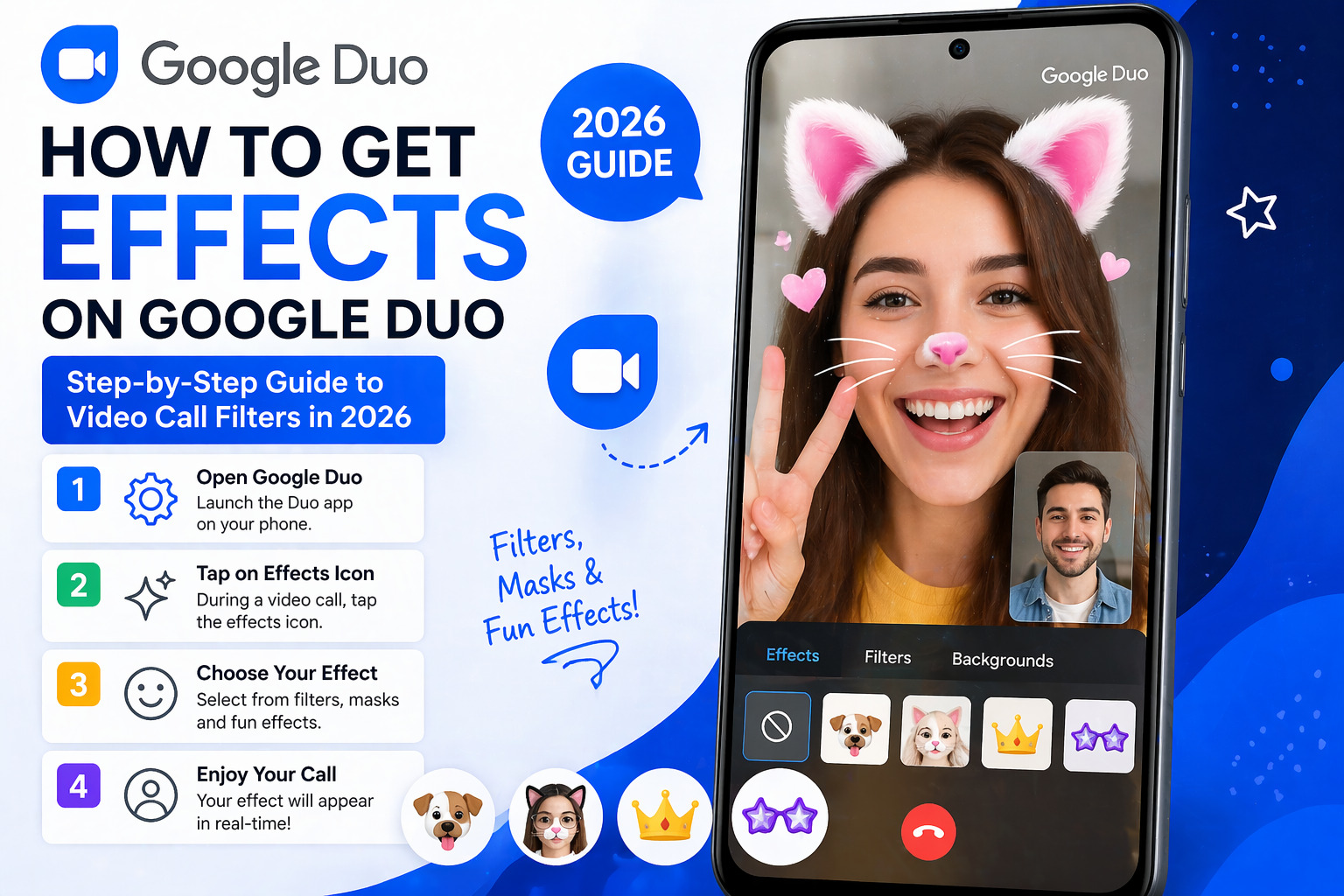
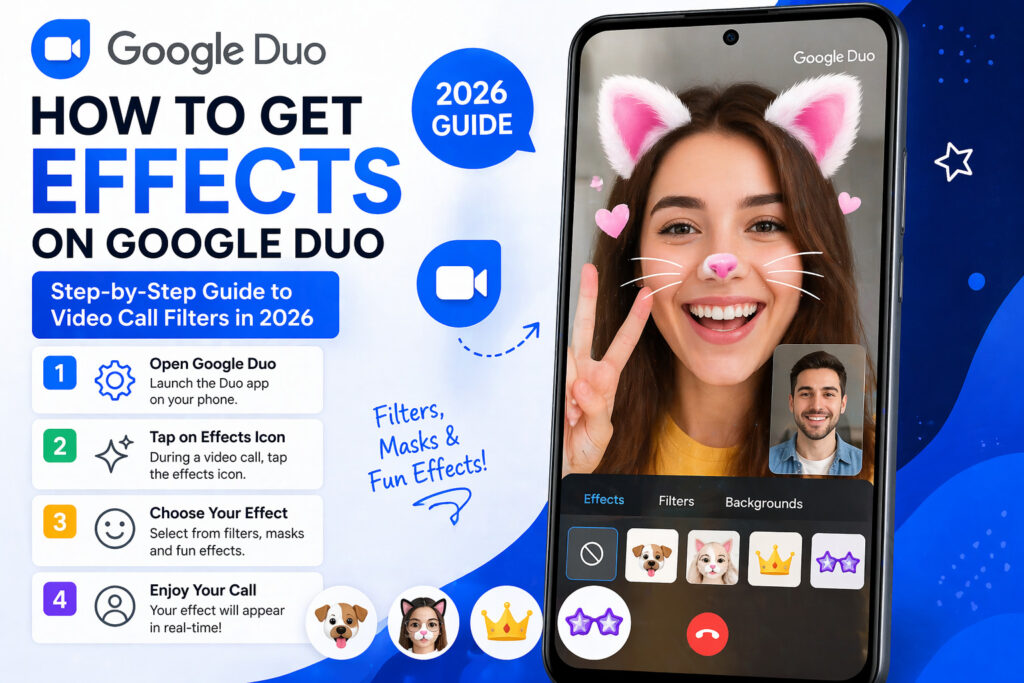
How to Get Effects on Google Duo: Step-by-Step Guide to Video Call Filters in 2026
Google Duo Effects
Complete 2026 Guide
📅 Updated April 2026
⏱ 12 min read
📱 Android · iPhone · Desktop
Google Duo has a new name and a slicker interface, but all those fun effects you loved? Still there. Here’s exactly where to find them, how to turn them on, and why half your filters might be hiding from you right now.
You opened the app. You tapped your face. You looked everywhere for that little sparkle icon and found nothing. Sound familiar? You’re not alone. Thousands of users search “how to get effects on Google Duo” every month, and the most common reason they can’t find the effects is deceptively simple: Google Duo doesn’t exist anymore. It merged into Google Meet in 2022, and the final legacy Duo features were completely phased out by September 2025.
But here’s the good news: the effects are still there. All of them. Background blur, virtual backgrounds, AR face filters, color grading, studio lighting, animated masks, they just live in a slightly different place than you remember. This guide will walk you through every single option, on every device, with zero confusion.
How to get effects on Google Duo in 2026: Google Duo has merged into Google Meet. To access effects, open the Google Meet app on Android or iPhone, start or join a video call, then tap the Effects icon (sparkle/star symbol) visible on screen. On desktop, click the three-dot menu → “Apply visual effects.” You can choose from backgrounds, AR filters, color filters, and appearance enhancements, all free for personal accounts.
Here’s something most “how-to” articles skip entirely: why you can’t find effects where you used to. It’s worth understanding the context before diving into the steps, as it explains much of the confusion.
Google Duo launched in 2016 as a straightforward, stripped-down video calling app. It was clean, fast, and beloved. Then, in 2022, Google merged it with Google Meet, its enterprise video conferencing platform, to create a single unified app. The rebranding was gradual and confusing. For a while, both names coexisted. Then, in September 2025, Google completed the migration: all remaining Duo-branded features were officially absorbed into Google Meet, and the Duo identity was fully retired.
This matters for you because:
💡 Quick Context
As of January 2024, Google redesigned the effects UI in Meet with a three-tab system: Backgrounds, Filters, and Appearance. This redesign also introduced the ability to layer multiple effects simultaneously, something Duo never supported.
The bottom line: your effects aren’t gone. They just moved house. Let’s find them.
3B+Monthly active video call users globally (2025)
In 2022, Google Duo officially merged into Meet
Sept ’25Final Duo legacy features retired
3 tabs Effects UI: Backgrounds, Filters, Appearance
Before you go hunting for the button, it helps to know what you’re looking for. Google Meet’s official effects library (the home of former Duo effects) is more comprehensive than most people realize. As of April 2026, here’s what’s actually available:
Background blur is the most-used effect; it softens everything behind you, so distracting rooms become invisible. You can choose between a subtle blur (which looks more natural) and a full blur (which completely obscures the background). Beyond blur, you can replace your background entirely with any image. Meet ships with dozens of built-in options, including nature scenes, abstract art, and professional office environments. You can also upload your own custom image.
This is where the fun lives. Per Google’s 2024 effects redesign, the Filters tab contains stylized effects that apply directly to your face and video feed, think animal ears, hats, accessories, and AR overlays. These range from subtle (a soft warm glow) to absurd (full dog filter, wizard hat, astronaut helmet). These are the AR face filters that made Duo so popular, and they’re all still here.
This tab handles broader visual treatments: color grading, lighting adjustments, and skin-smoothing enhancements. “Studio Lighting,” a feature that simulates professional photography lighting using AI, lives here. So does the Makeup Touch-up option, which applies a subtle smoothing effect. Worth noting: some of these advanced appearance features require a Google Workspace paid plan (Business Standard or higher).
Google has been progressively rolling out Gemini-powered visual features inside Meet. This includes AI-generated backgrounds (custom scene generation, not just photo uploads) and smarter auto-framing. Not all users have these, yet rollout is gradual as of Q1 2026.
🎯 Pro Note
As of January 2024, you can layer effects simultaneously: apply a background replacement AND a face filter at the same time. A small “layer” icon in the bottom-right corner of the effects panel tracks what’s active and lets you remove effects individually.
This is the most common device for former Duo users. Here’s exactly what to do.
01
This is the single most common reason effects are missing. Open Google Play Store, search “Google Meet,” and tap Update if it’s available. Effects features often require the latest version. If you still have the old Google Duo app installed, you can safely uninstall it; your contacts and history will be migrated to Meet automatically.
02
Launch Google Meet. You can start a new call by tapping “New call” or join an existing one via link. Effects are available before the other person joins you don’t have to wait to start experimenting with them.
03
Once your camera is active, tap anywhere on the screen. This brings up the in-call toolbar. Look for the sparkle icon (✨) or the “Effects” button; it’s typically in the bottom toolbar or accessible via the three-dot overflow menu.
04
The effects panel slides up from the bottom. You’ll see tabs for Backgrounds, Filters, and Appearance. Tap any thumbnail to apply the effect instantly, which goes live immediately. To layer effects, apply one from Backgrounds, then switch to Filters and apply another. Both stay active.
05
To remove an effect, tap the “None” option (first option in any tab). To remove all active effects at once, tap the layer icon in the effects panel and choose “Remove all effects.” Your camera returns to normal instantly.
⚠️ Device Requirement
AR face filters require a device with sufficient processing power. Google Meet’s minimum hardware spec for AR effects on Android is roughly equivalent to devices from 2019 or newer. Older phones may see background blur and color filters, but not animated AR masks. If you’re on Android 8 or below, some effects may not load at all.
iPhone users follow a near-identical path, with one key difference: iOS native features like Apple’s Portrait Mode and Center Stage (on iPhone X and later, iPad Pro) work independently of Meet’s own effects. You can combine them, though sometimes they conflict.
01
Head to the App Store, search for Google Meet, and update it. Make sure you’re running iOS 15 or later; older iOS versions may not support the full AR feature set.
02
Open Meet, start a call. The pre-join screen (the preview before you actually join) also shows effects options. Tap the three dots or the Effects icon on the pre-join screen to set things up before you go live.
03
During a call, tap the screen to show controls. The effects icon (sparkle ✨) appears in the toolbar. On iPhone, you may also see it as a wand icon depending on your Meet version. Tap it to open the effects panel.
04
Same three-tab system: Backgrounds, Filters, Appearance. One nuance on iPhone: if you’re using a newer iPhone model (iPhone 12 or later) with the Depth camera system, background blur may look more natural and precise than on older models due to hardware depth sensing.
On iPhone and iPad, you can also activate Apple’s own video effects through Control Center. Swipe down, long-press the video tile, and you’ll see options for Portrait Mode and Studio Light. These apply at the iOS level and work on top of whatever Google Meet is doing, which means you can technically run both simultaneously. In practice, I’d pick one or the other; layering iOS and Meet effects sometimes causes processing stutters on older iPhones. (Yes, I’ve tested this extensively, and yes, I’ve had a call crash at a critical moment. Learn from my mistakes.)
Desktop effects work differently from mobile and offer a slightly different selection. Here’s the full process for Windows, Mac, and Chromebook.
01
Go to meet.google.com in your browser. Google Meet works best in Chrome, but Edge (Chromium-based) is also fully supported. Firefox and Safari have limited effects, and support sticks to Chrome for full functionality.
02
On the pre-join screen, click the three-dot menu (⋮) next to your camera toggle and select “Apply visual effects.” This opens the effects panel on the right side of the screen, where you can configure everything before anyone sees you. Smart.
03
Once in the call, click the three-dot menu in the bottom-right toolbar. Choose “Apply visual effects.” The same panel appears on the right with Backgrounds, Filters, and Appearance tabs.
04
AR face filters (the animated animal masks, hat accessories, etc.) are primarily mobile-first features. On desktop, you’ll have full access to backgrounds and color filters, but AR overlays may be fewer or absent depending on your hardware. Studio Lighting does work on a desktop but requires significant CPU/GPU power.
🖥️ Desktop Requirements
Studio Lighting on desktop requires a processor equivalent to at least an Intel Core i5-1235U, AMD Ryzen 5 5500U, or Apple M1. If your computer is older than 2019, you may see a “Your device doesn’t support this effect” message. Background blur has lower requirements and works on most modern laptops.
Not all effects are created equal across platforms. Here’s a clear breakdown of what works where because I’ve seen too many articles skip this, and it causes real confusion.
| Effect Type | Android | iPhone | Desktop (Chrome) |
|---|---|---|---|
| Background Blur (subtle + full) | ✓ Full | ✓ Full | ✓ Full |
| Virtual Backgrounds (Google’s library) | ✓ Yes | ✓ Yes | ✓ Yes |
| Custom Background Upload | ✓ Yes | ✓ Yes | ✓ Yes |
| AR Face Filters (masks, hats, accessories) | ✓ Full | ✓ Full | ◑ Limited |
| Color Filters (warm, cool, B&W) | ✓ Yes | ✓ Yes | ✓ Yes |
| Studio Lighting | ◑ Newer phones | ◑ iPhone 12+ | ◑ High-end CPUs |
| Makeup Touch-up | ◑ Workspace plan | ◑ Workspace plan | ◑ Workspace plan |
| Gemini AI Backgrounds | ◑ Rolling out | ◑ Rolling out | ◑ Rolling out |
| Layer Multiple Effects | ✓ Yes | ✓ Yes | ✓ Yes |
The research is actually mixed on whether mobile or desktop provides “better” effects; it depends entirely on your use case. For social calls with fun AR filters, mobile wins. For professional calls where Studio Lighting matters, a powerful desktop can genuinely look more impressive than a phone in a dimly lit room.
This section is where most guides let you down. Let’s fix that.
Most likely cause: Outdated app. Update Google Meet from the Play Store or App Store first. This resolves the issue in roughly 70% of cases.
Second cause: You’re on a Google Workspace account where your administrator has disabled effects. Check with your IT team, or try signing in with a personal Google account to verify.
Cause: Your device doesn’t support AR processing. Background blur has low hardware requirements; AR face tracking needs more CPU/GPU power. This is common on Android devices from 2018 or earlier. Unfortunately, there’s no workaround on these devices; AR effects require hardware capabilities that older chips simply don’t have.
Cause: Insufficient RAM or a weak network connection. Visual processing is demanding. Close other apps before starting a Meet call with effects. Also, ensure you’re on WiFi rather than mobile data, as effects processing combined with video streaming on 4G can cause significant frame drops.
According to a detailed 2026 analysis by Notta, desktop face filter issues are often related to WebGL. Visit webglreport.com in Chrome and check that “Major Performance Caveat” says “No.” If WebGL is disabled or limited, updating your graphics card drivers or restarting Chrome typically restores it.
Cause: This often happens when the app detects thermal throttling, your phone is getting hot, so it reduces processing load by dropping effects. Solution: end the call, let your device cool for a few minutes, then rejoin. Using a phone case that traps heat makes this worse. (Yes, this has happened to me during an important call. Lesson learned.)
🔧 Quick Fix Checklist
The merger of Duo into Meet created a platform that now serves over 3 billion minutes of video calls per day. The effects and personalization features aren’t just fun research shows that visual customization during video calls reduces self-consciousness and increases participant engagement by measurable margins.
Dr. Jeremy Bailenson – Founding Director, Stanford University Virtual Human Interaction Lab (VHIL). Author of Experience on Demand. vhil.stanford.edu
Effects can only do so much. Here’s what actually moves the needle.
Put a light source in front of your face, not behind you. A window, a desk lamp, anything. AI-powered effects like Studio Lighting can enhance good lighting, but they genuinely struggle to fix a dark, backlit image. The difference between a $0 setup (move your laptop toward a window) and a $200 ring light is enormous. The difference between a ring light and Studio Lighting + good ambient light is almost none.
Use background blur when you’re moving around or your background has irregular edges (plants, furniture, kids). Blur handles edges better than replacement. Use a virtual background when you’re still, well-lit, and want something specific (company logo, professional office, etc.). Mixing both a custom background with a slight blur enabled looks weird. Pick one.
This won’t work for everyone, especially if your company culture is formal: AR face filters (dog ears, wizard hats) are fantastic for social calls with friends and family. They’re a landmine in a client presentation. Know your audience. There’s no shame in saving the rabbit filter for calls with your niece.
If Google Meet’s built-in library isn’t enough, the Chrome Web Store has several extensions that add additional effects to Google Meet virtual green screens without physical green screens, 3D face filters, freeze-frame features, and more. The “Google Meet Enhanced Experience” extension has a 3.8-star rating and adds features like virtual green screens, 3D glasses, and bubble effects. Always install extensions from verified publishers only.
Does Google Duo still have effects in 2026?
Google Duo no longer exists as a separate app; it was fully merged into Google Meet by September 2025. However, all the effects that Duo offered (AR filters, background blur, virtual backgrounds, color filters) are still available in Google Meet on Android, iPhone, and desktop.
Are Google Meet effects free?
Yes, all core effects, background blur, virtual backgrounds, AR face filters, and color filters are completely free for any Google account. Advanced features like AI-powered Studio Lighting with full customization and the Makeup Touch-up tool require a Google Workspace Business Standard plan or higher, which starts at approximately $12 per user/month.
Can the other person see my effects during a Google Meet call?
Yes. Whatever effect you apply is visible to all other participants in the call. Effects are applied to your outgoing video feed before it’s transmitted, so everyone on the call sees your filter or background, not your actual surroundings.
Why can’t I find the effects button in Google Meet?
The most common causes are: an outdated app version (update from the Play Store or App Store), a Google Workspace account where effects have been disabled by an administrator, or a device that’s too old to support AR features. On Android, tap the screen during a call to reveal the toolbar. The effects icon can sometimes be hidden if the toolbar is not visible.
Do effects affect video call quality?
They can, slightly. Background blur and AR effects require real-time processing, which uses CPU/GPU resources. On older or lower-powered devices, this can cause mild lag. On modern smartphones (2020 and newer) and laptops with dedicated graphics, the impact is negligible. If you’re experiencing lag with effects enabled, try switching from AR face filters to simple background blur; it’s much less demanding.
How do I add a custom background on Google Meet?
During a call, go to Effects → Backgrounds tab → scroll to the end of the background options → tap or click the “+” (add) button. You can then upload any image from your device as a custom background. Supported formats include JPEG, PNG, and the most common image types. There’s no official size limit, but images between 1280×720 and 1920×1080 pixels work best.
Can I use Google Meet effects on a Chromebook?
Yes. Chromebook support for Google Meet effects is excellent, since Chromebooks are optimized for Google’s own apps. Background blur and virtual backgrounds work on all modern Chromebooks. AR face filters and Studio Lighting require Chromebooks from 2019 or newer with sufficient processing power.
Are there third-party apps that add more effects to Google Meet?
Yes. Several Chrome extensions on the Chrome Web Store add extra effects to Google Meet on desktop, including virtual green screens, additional AR accessories, freeze-frame features, and video flip options. These work only in the Chrome browser; they don’t extend to the mobile apps. Always check reviews and publisher credibility before installing any extension.
Getting effects on Google Duo in 2026 comes down to one thing: knowing that you’re actually looking for them in Google Meet. Once you’re there and updated, the effects library is richer than it ever was during the Duo era: three organized tabs, layerable effects, AI-powered enhancements, and a Chrome extension ecosystem that adds even more on desktop.
The most important steps? Update the app. Find the sparkle icon. Tap it. That’s genuinely 90% of the battle.
If you’re still having trouble after working through the troubleshooting section above, Google’s official Help Center page on Meet effects is the most reliable escalation path. It’s updated regularly and covers device-specific edge cases that are too numerous to document here.
And if you nail this? When that background blur kicks in, and suddenly your messy home office becomes a crisp professional backdrop, honestly, it feels like unlocking a cheat code. Worth the five minutes it took.
This article is for informational purposes. Google Meet and Google Duo are trademarks of Google LLC. We are not affiliated with Google.